What Is WIN Time? How a “What I Need” Block Works
WIN time is a daily “What I Need” block where every student gets intervention, practice or enrichment. How it works, how to set it up and common fixes.
Plan every reading group, math session and intervention prep task in one clear weekly view. Repeat a session for the whole round in one step, tick it off when it’s done, and move it in seconds when the schedule changes. No download, no setup, and no account needed to start.
Independent tool. This site is built by Raza Mehdi and isn’t your school’s RTI platform. For a school, district or Clever account, use the login page your school gave you.
Your schedule
Guest mode: saved in this browser
RTI Scheduler is a free, browser-based planner that gives intervention work a fixed place in your week. You add a task, such as a Tier 2 reading group, a math fluency session or the job of photocopying next week’s practice sets, then choose the date, the local clock time and a priority of High, Medium or Low. Every task lands in one list that you can view by today, by the days ahead, or all at once.
Response to Intervention (RTI) and Multi-Tiered System of Supports (MTSS) only work when the extra support actually happens, on the days and at the times the team planned. Anyone who has run intervention groups knows how hard that is. Assemblies move, state testing takes over a hallway, a colleague is absent, or a student group is pulled for something else. When your plan lives across sticky notes, a lesson planner, a phone reminder and the margin of a staff meeting agenda, those changes are exactly where sessions slip through the cracks.
This tool fixes the scheduling layer of that problem. It doesn’t decide which students need support, which program to use or how progress should be measured. Those are decisions for your school team and your approved systems. What it does is keep your own sessions, preparation and follow-ups visible, in order, and easy to update.

Anyone who is personally responsible for getting intervention time onto the calendar and keeping it there. The workflow is the same for everyone: add the task, set the date and time, choose a priority.
Plan small-group Tier 2 sessions around your core lessons, and schedule the prep that has to happen first, such as leveled passages, word cards or a quick check-in activity.
Organize several support blocks a day across different rooms and grade levels, and keep a clear view of which session comes next and what you need to bring.
Track your own preparation for data meetings, team reviews and follow-up actions, so every decision made in a meeting turns into a dated task you’ll see again.
Plan your work around agreed intensive support sessions and service times, while official minutes and records stay in your district’s approved system.
Schedule classroom visits, planning conversations and the follow-ups that keep an intervention program running smoothly across a building.
Keep tutoring sessions, material preparation and parent check-in reminders in one personal schedule that works on any device you carry.
There is no setup screen and nothing to configure. Open the planner above and you can save your first task in under a minute.
Select Add Intervention and type a short, general name, for example “T2 reading fluency group” or “Prep math manipulatives”. Add an optional detail such as “Bring timer and word cards”.
Choose the day and enter the start time in your local clock. The tool saves the time exactly as you enter it, so what you type is what you see.
Mark the task High, Medium or Low so the work that can’t slip stands out. For a group that meets every week, choose Repeat weekly and the number of weeks.
Check Today each morning and tick sessions off as they happen. Anything you missed stays at the top until you reschedule it. When a session moves, open the task, choose Edit and change the date or time.
A short list of features that each solve a real planning problem, without the learning curve of a full platform.
Every intervention or prep task carries a date and a local start time, and the list is always shown in the order things happen.
High, Medium and Low labels show at a glance which tasks must happen and which can move if the day gets tight.
Three views of the same saved list: what is happening today, what is coming next, and everything you have planned.
Add a group once and repeat it for 2 to 20 weeks. Each week is its own task, so one assembly only moves one session.
Mark sessions done as they happen. Anything from earlier days that isn’t ticked off shows at the top of Today.
Step back or forward a week, tap a day to see only its sessions, and see how many of this week’s tasks are done.
Change any detail, copy a task to next week, or delete what you no longer need. Short notes keep prep reminders with the session.
Download upcoming tasks as an .ics file for Google, Outlook or Apple Calendar, and let your calendar handle reminders.
Print a clean one-page week to post by your door or share with the teachers whose students you see.
No student names, rosters or scores. Short general notes like “Room 12, bring the timer” keep prep reminders with each session.
Start planning straight away with no signup. Guest tasks stay in the browser on the device you are using.
Create a free account to save tasks to your account and load the same list on your laptop, tablet or phone.
A good intervention schedule is less about the tool and more about the order in which you make decisions. The approach below works whether you support one small group or run a full caseload across several classrooms. It also matches the way the planner is designed: first the fixed sessions, then the preparation around them, then priorities.
Before you add anything, confirm the frequency, duration and staffing your school or MTSS team has agreed for each group. As a rough guide, the IRIS Center at Vanderbilt describes Tier 2 as groups of 3 to 5 students meeting 3 to 5 times a week for at least 30 to 45 minutes, over a round of 10 to 12 weeks (see how long Tier 2 sessions should be). Tier 3 is more frequent, more intensive and more individualized (see Tier 3 scheduling). Those decisions come from your team and your data, not from a scheduling tool. Keep the roster and the rationale in your school’s approved system, and use the planner only for the times you’ll be delivering or preparing.
Intervention is designed to add to core Tier 1 instruction, not replace it. Look at the master schedule and mark the blocks where students can’t be pulled, such as core reading or math, then place intervention time around them. Many schools use a dedicated intervention or “WIN” block for exactly this reason; see these elementary RTI schedule examples and how schools find time for intervention. If you are a specialist moving between classrooms, map each teacher’s core times before you commit to a slot.
Add the first session and choose Repeat weekly for the length of the round, for example 10 weeks of the Tuesday reading block. Each week is saved as its own task, which pays off the first time a fire drill or field trip lands on a Tuesday: you edit that single session and leave the rest untouched. Use a consistent, general naming pattern so related work groups together visually, such as “T2 – Reading group A” or “T3 – Phonics session”.
Most missed or rushed sessions fail before they start, because the materials were not ready. For every session, ask what has to happen beforehand and give that its own task: choose the passage, print or copy practice sheets, gather manipulatives, reset a timer, book the room. Date preparation tasks a day or two ahead of the session they support, so a busy morning can’t squeeze them out. Our guide to intervention task dependencies shows how to put prep in the right order.
Back-to-back sessions on paper rarely run back-to-back in a building. Walking between rooms, collecting students, settling a group and packing away all take real minutes. Build a realistic buffer between sessions based on your actual travel and setup, and treat it as part of the plan rather than wasted time. If you constantly start late, the schedule is telling you the buffer is too small. Read more about planning transition time between sessions.
A tier label doesn’t automatically make a task urgent. Set High for work that must happen at its planned time, such as a scheduled intensive session or prep without which the session can’t run. Use Medium for important tasks with a little flexibility, and Low for jobs that can shift without affecting students. Reviewing priorities once a week keeps the High list short and meaningful.
After a session there is usually something to do: record what was delivered in the approved system, reset materials, update a colleague or prepare an item for the next team meeting. Add those as dated follow-up tasks so they don’t live only in your memory. The follow-up planning guide has a simple pattern you can reuse every week.
Here is how one interventionist’s week might look in RTI Scheduler. Every task name is general enough to share safely, yet specific enough to act on. Your own times and frequencies will follow your school’s plan.
| Day | Time | Task | Priority |
|---|---|---|---|
| Monday | 7:45 AM | Prep – copy fluency passages for the week | High |
| Monday | 9:30 AM | T2 – Reading fluency group A (Room 12) | High |
| Monday | 1:15 PM | T2 – Math facts group (Room 8) | Medium |
| Tuesday | 9:30 AM | T3 – Phonics session (Library table) | High |
| Tuesday | 3:30 PM | Prep – sort manipulatives for fractions groups | Medium |
| Wednesday | 9:30 AM | T2 – Reading fluency group A (Room 12) | High |
| Wednesday | 2:45 PM | MTSS team meeting – bring agenda items | Medium |
| Thursday | 9:30 AM | T3 – Phonics session (Library table) | High |
| Thursday | 12:30 PM | Follow-up – action items from team meeting | Medium |
| Friday | 9:30 AM | T2 – Reading fluency group A (Room 12) | High |
| Friday | 2:30 PM | Weekly review – record delivery, plan next week | Low |
Build your own weekly RTI schedule with our step-by-step example
Prefer paper? Grab the free printable weekly intervention schedule template.
RTI Scheduler is deliberately a personal planner, not a records system. That design choice protects you and your students. A task only needs to tell you what is happening, where and when. It never needs to say who. The examples below show the difference.
| Write this | Not this |
|---|---|
| T2 reading group A – Room 12 | A student’s full name or identifying initials with a reading level |
| Prep fluency passages for Wednesday | A list of students’ assessment scores |
| Follow-up – update team on group progress | Details from an IEP, 504 plan or evaluation |
| T3 session – library table, bring timer | Diagnoses, medication or therapy notes |
| Call home – use school phone log | A family’s phone number or home situation |
If you would not be comfortable reading a note aloud in the teachers’ lounge, it doesn’t belong in a personal planner. Student identities, assessment data and service records should stay in the system your school or district has approved for that purpose, where the right protections and access controls apply. For more detail, read our Student Privacy and FERPA Notice, the Health Information and HIPAA Notice, and the guide to writing safe intervention planning notes.
The same rule applies to passwords. This site has its own free accounts, which are separate from any school system. Never type a school, district or Clever password into RTI Scheduler.
Priority is a personal planning label. It doesn’t change the order of the list, which is always by date and time, and it isn’t the same as an intervention tier. Use it to decide what to protect when a day gets squeezed.
Scheduled intervention sessions, especially intensive ones, and any preparation without which the session can’t run. If a High task moves, check the tasks that depend on it.
Meetings, materials prep that has a day of slack, and follow-ups that should happen this week. These can move a little without affecting students.
Organizing resources, cleaning up shared folders, the weekly review and other useful jobs that can shift to the next free slot without consequence.
You can plan in either mode, and you can switch at any time. When you sign in, the tool moves the guest tasks from that browser into your account automatically. Check your list once after signing in, before you clear any browser data.
| Guest mode | Free account | |
|---|---|---|
| Cost | Free | Free |
| Signup | Not needed | Email and password |
| Where tasks are saved | This browser only | Your account |
| Use on another device | No | Yes, after signing in |
| Clearing browser data | Removes your tasks | Tasks stay in your account |
| Best for | Trying the tool, one device | Laptop at school, phone on the go |
On a second device, sign in and select Refresh to load the latest list. Try not to edit the same schedule on two devices at the same moment, as the last save wins.
The tool is fast, but the habit is what keeps an intervention schedule reliable. This three-part routine takes a few minutes and fits into a normal school week.
Look back over the week. Anything not ticked off is a session that needs moving. Record delivered sessions in your school’s approved system and add next week’s sessions and prep.
The Friday reviewOpen Upcoming and scan for clashes with assemblies, testing, trips or meetings announced late. Adjust times now, while there is still room to move.
Run a conflict checkA ten-second look at Today tells you what is next, where it is and what to bring. Tick sessions off as you finish them.
The 30-minute block routinereading grp @ 9:30? · move math session · copies for Thu · which is urgent?
Response to Intervention (RTI) is a school framework for identifying students who need extra academic support and providing it early, at increasing levels of intensity, while checking regularly whether that support is working. Multi-Tiered System of Supports (MTSS) is a broader framework built on the same tiered idea, and it often covers behavior and social-emotional needs alongside academics. Read RTI vs MTSS for the full comparison.
Both are usually described in three tiers:
Across every tier, the support only works if it’s delivered with the frequency and duration the team planned. That is why finding and protecting time is one of the most persistent practical challenges schools describe when they implement tiered support. The National Center on Intensive Intervention publishes useful guidance on finding time for intensive intervention at the school level.
Every RTI program depends on sessions happening at the frequency and duration the team agreed. RTI Scheduler works at that smaller scale: your own week. Your school team still chooses which students join which group, which intervention they get and how progress is measured. The planner helps with the next step: turning your share of the RTI program into dated sessions, prep tasks and follow-ups that you see each morning and can move when the week changes.
Knowing a tool’s limits helps you decide where it fits. RTI Scheduler deliberately stays small and focused, so it does not:
This independent site is separate from the school platform at rtischeduler.com and from district systems that use similar names. School and Clever accounts don’t work here. Ask your school or district for its approved login address, and never enter a school password on this website.
RTI Scheduler is developed and maintained by Raza Mehdi, a web developer who built it after seeing how much intervention planning still happens on scraps of paper late on a Sunday night. The goal is a planner that takes seconds to learn and never gets in the way of the teaching. Feedback about confusing steps, display problems or missing features shapes what gets improved next.
Yes. You can add, edit and delete intervention tasks without paying and without creating an account. Guest tasks are saved in the browser you are using. A free account is optional and only adds one thing: your tasks are stored in your account so you can load them on another device.
No. This website is an independent personal planner built by Raza Mehdi. It isn’t connected to the school platform at rtischeduler.com, and it doesn’t accept Clever, district or school logins. If your school gave you an RTI Scheduler account, use the login address your school provided, and never type a school password on this site.
There’s no app to download. RTI Scheduler runs in any modern browser on a laptop, Chromebook, tablet or phone, so it works like a web app with nothing to install or approve. On a phone, use your browser’s “Add to Home Screen” option to open it with one tap. Sign in to a free account to see the same schedule on every device.
As a guest, tasks are kept in your browser’s local storage on that one device. Clearing site data or using private browsing can remove them. When you sign in to a free account, the tool moves your guest tasks into your account and saves new tasks there, so you can open the same list on another device after signing in.
Keep every task general. Do not enter student names, initials that identify a child, ID numbers, test scores, grades, diagnoses, IEP or 504 details, medical or family information, or any password. Write “T2 reading group, Room 12” rather than anything that points to a specific student. Official records belong in your school’s approved system.
Yes. When you add a session, choose Repeat and pick how many weeks, from 2 to 20. The planner adds one task per week on the same day and time. Each week is saved separately, so you can move a single session when an assembly or test day disrupts the master schedule without touching the rest.
The planner itself doesn’t send emails or push notifications. If you want alerts, select Export to calendar (.ics) under the schedule and open the file in Google Calendar, Outlook or Apple Calendar. Your calendar app then reminds you as usual. Each morning, the Today view also lists anything from earlier days you haven’t ticked off.
Your school team decides, but the IRIS Center at Vanderbilt University describes Tier 2 as groups of 3 to 5 students meeting 3 to 5 times a week for at least 30 to 45 minutes, over a round of at least 10 to 12 weeks. Add the first session in RTI Scheduler and repeat it weekly for the whole round, so your week shows exactly how much intervention time you have committed.
No. Tasks are listed by date and time. A tier label in the task name is just text that helps you recognize related work. Priority is set separately as High, Medium or Low, and you choose it based on urgency and your team’s agreed plan.
No. RTI Scheduler is a planner for your own time, not a progress monitoring tool, data system or student information system. Record screening results, progress data and service minutes in the system your school or district has approved.
Short, practical articles on the everyday side of intervention work: preparing sessions, naming tasks, handling changes and keeping notes safe.
WIN time is a daily “What I Need” block where every student gets intervention, practice or enrichment. How it works, how to set it up and common fixes.
Progress monitor at least every two weeks at Tier 2 and weekly at Tier 3. How to fit probes into your week, enter data on time and use it at meetings.
Tier 3 intervention usually runs daily for 40 to 60 minutes in groups of three or fewer. Where schools find the time, a sample day and how to protect it.
A copyable 40-minute MTSS meeting agenda with team roles, a data review section and an action list that turns every decision into a dated task.
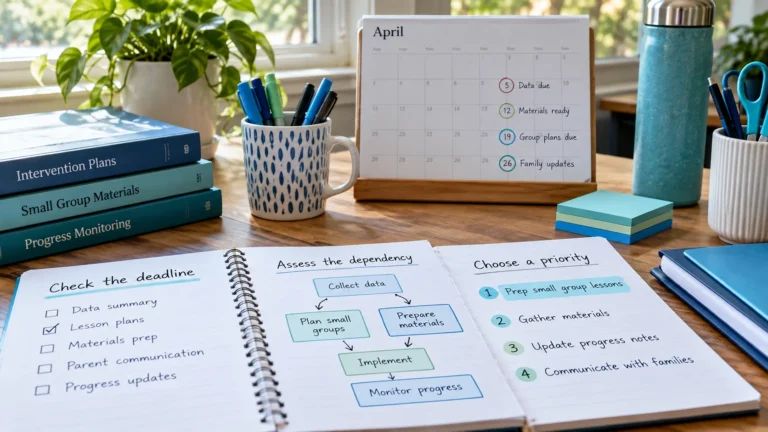
A simple way to decide which intervention prep tasks are High, Medium or Low priority, so materials and follow-ups are ready before each session.
Know the difference between your personal intervention planner and official student records, and which details belong in each to protect privacy.
Add your first intervention session, give it a time and a priority, and see your week take shape. It’s free, it runs in your browser, and you can start without an account.
Start SchedulingNo installation. No signup required to try it.