Planning Transition Time Between Intervention Sessions
Why back-to-back intervention sessions run late, and how to build realistic transition buffers for travel, setup and student pickup into your schedule.

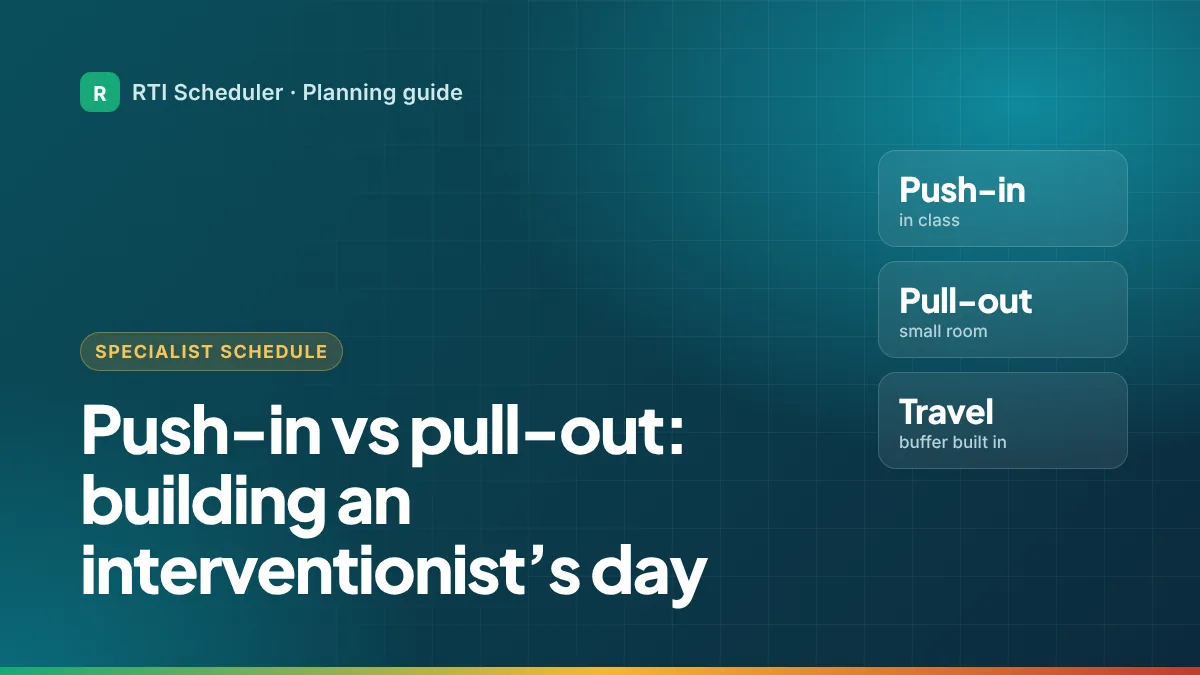
If you’re a reading or math interventionist, your schedule depends on one big choice: do you go into classrooms (push-in) or bring students to you (pull-out)? Most specialists end up doing both. This guide compares the two, shows how to build a day that mixes them, and covers the details that make or break a specialist’s schedule: travel time, core-instruction conflicts and prep.
| Push-in | Pull-out | |
|---|---|---|
| Where it happens | In the student’s classroom | In your room, library or a shared space |
| Best for | Supporting small groups during the class’s own practice time | Focused small-group work that needs quiet and specific materials |
| Scheduling depends on | The classroom teacher’s timetable | A time when students aren’t missing core instruction |
| Main risk | Noise and divided attention | Students missing core lessons, plus collection time |
| Materials | Must travel with you | Can stay set up |
Before you place a single group, ask each teacher you support for their core reading and math times, specials and lunch. Put them in one grid. The blocks where you can’t pull students are the most useful information you’ll get. The Center on MTSS lists protecting core instruction as the first rule of a good schedule (tip sheet, PDF).
Tier 3 sessions and groups that pull from several classes are the hardest to fit. Schedule them first, then fit Tier 2 groups around them. Push-in groups go where a teacher already has independent practice or centers. Pull-out groups go into WIN blocks or other non-core time.
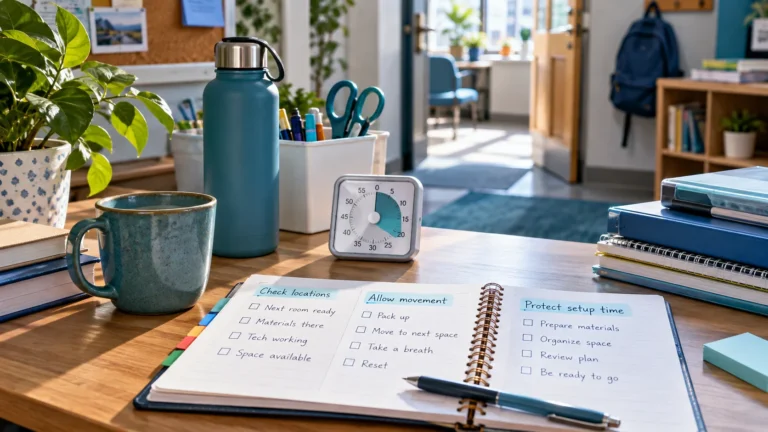
This is where most specialist schedules fail. Collecting students from a room, walking to the library and settling them can easily take five minutes or more, and returning them takes more. Build a buffer between every pair of sessions based on your actual building. If you’re constantly late for your 10:00 group, the buffer is too small. Our guide to transition time between sessions shows how to estimate it.
An example only. Group names are general so no student can be identified.
| Time | Task | Type |
|---|---|---|
| 7:50 AM | Prep – pack push-in bag (word cards, timer, passages) | Prep |
| 8:40 AM | T2 – Phonics group, Grade 1 (Room 7) | Push-in |
| 9:15 AM | T2 – Phonics group, Grade 2 (Room 9) | Push-in |
| 9:45 AM | Travel and collect Grade 3 group | Buffer |
| 9:55 AM | T3 – Decoding session (Reading room) | Pull-out |
| 10:30 AM | T2 – Fluency group, Grade 4 (Reading room) | Pull-out |
| 11:05 AM | Follow-up – log morning sessions in school system | Follow-up |
| 12:45 PM | T2 – Comprehension group, Grade 5 (Room 18) | Push-in |
| 2:30 PM | Prep – copy passages for tomorrow | Prep |
Teachers need to know when you’re coming and which group you’ll take. They don’t need your prep tasks. Many specialists print a one-page weekly view and post it, or share it at the start of each round. In RTI Scheduler you can print the week or export it to a calendar file that teachers can add to their own calendar.
Assemblies, testing days and absences will move sessions. If every session is its own dated task, you change one occurrence and leave the rest alone. Each Friday, look at what was marked done and reschedule what was missed. The Friday review routine walks through it.
Add the sessions and prep tasks from this guide to the free RTI Scheduler. No signup needed to start.
Start SchedulingWhy back-to-back intervention sessions run late, and how to build realistic transition buffers for travel, setup and student pickup into your schedule.
Three elementary RTI schedule examples: a staggered WIN block by grade, a small-group rotation in the literacy block, and one interventionist’s full day.
Build a weekly RTI intervention schedule step by step: Tier 2 session lengths, WIN and flex blocks, prep, transitions and a sample week to copy.