
How to Build an RTI Intervention Schedule (With Example)
Build a weekly RTI intervention schedule step by step: Tier 2 session lengths, WIN and flex blocks, prep, transitions and a sample week to copy.
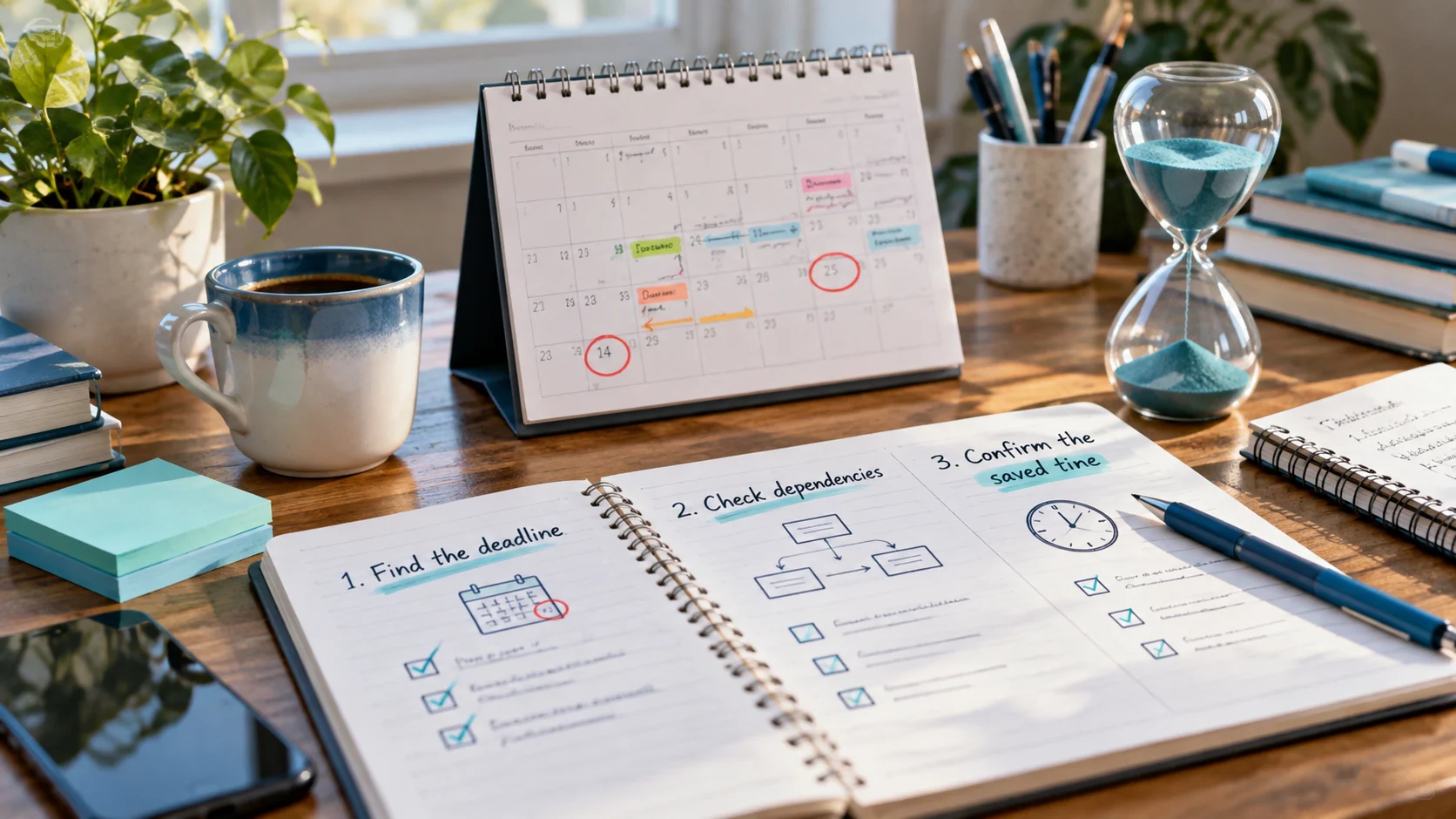
Choosing a date and time sounds trivial until a session lands on testing day or a prep task is due after the session it supports. A little thought about timing prevents most schedule problems. Here is how to choose sensible dates and times for sessions and the tasks around them.
Session timing should come from your team’s agreed frequency and duration, and from the master schedule. Once you know a group meets, say, on certain weekdays at 9:30 AM, enter each of those dates individually for the next few weeks. Consistent times help students and colleagues build routine.
Before saving, check the school calendar for assemblies, testing windows, trips, holidays and early dismissals. It’s easier to move a session now than on the morning it clashes.
Ask when the prep must be finished, then pick a time before that with some slack:
Never date a prep task on the same slot as the session it supports. If the only time available is “right before”, that’s a sign the prep needs to move earlier.
Schedule follow-up while details are fresh: the same day for recording delivery in your school’s system, within a day or two for updates to colleagues. Small, specific follow-up tasks are far more likely to happen than “catch up on admin” at the end of the week.
When a session changes date or time, three things often need to move with it:
Edit the session first, then check the day before and the day after in the week strip. Our guide to intervention task dependencies covers this in more detail, and the manual conflict check helps you catch clashes.
Add the sessions and prep tasks from this guide to the free RTI Scheduler. No signup needed to start.
Start SchedulingBuild a weekly RTI intervention schedule step by step: Tier 2 session lengths, WIN and flex blocks, prep, transitions and a sample week to copy.
Free printable weekly intervention schedule template for teachers and interventionists, plus a simple method to plan sessions, prep and follow-up.
Catch overlapping intervention sessions and prep tasks before they happen. A quick manual conflict check for your weekly intervention schedule.